

Dynamics is a powerful tool that companies can use to track various parts of their processes. Some businesses focus on tracking just their customers and sales, while others incorporate the projects or additional work that comes after a sale is made. No matter what part of the process you’re tracking with Dynamics, you’re likely to need to store files associated with that process.
SharePoint is a great tool for storing and sharing files. When integrated with Dynamics, it allows users to easily associate files with records in Dynamics and share those files with coworkers who don’t use Dynamics. You can even use hierarchies within the SharePoint folders to make related files easily accessible within the same record; for instance, you could set up the integration so that your Opportunity files are always in sub-folders under their parent Account. The integration also honors any existing security policies, so if a user can’t access a SharePoint site normally, they can’t access it through the integration, either.
Using Power Automate, we can make the SharePoint integration even more powerful by creating automations to customize naming conventions, folder structures, and how many folders in SharePoint are automatically tied back to a record in Dynamics.
Today, we’re going to look at how Power Automate can be used to create a dynamic folder structure for your Dynamics 365 SharePoint Integration, and how that can be used to foster collaboration and maintain an organized, easy-to-navigate file system.
Scenario
AdventureWorks is a company that hosts trips for individuals, groups, and companies. While the sales team has an overall idea of what trips are available, the project team has the most up-to-date information on what needs to be prepared for each trip. So, once the sales team qualifies a Lead, they work with the project team to ensure they’re gathering all the necessary information for the trip to be a success.
In SharePoint, AdventureWorks has two main sites: A Sales site and a Project site. The Sales site has details relevant to the sale itself, including quotes and contracts, while the Project site has information relevant to individual experiences, like attendee rosters and waivers. The Project team doesn’t have access to Dynamics, so they rely on the Sales team to upload the documents relevant for each trip.
Let’s look at how we can use SharePoint and Power Automate to easily build a structure that lets the sales team and project team find the files relevant to a specific customer quickly and easily.
The Lead
Since the more detailed project information only comes in at the Opportunity stage, Leads only need a folder on the Sales SharePoint site. Without using Power Automate, the SharePoint integration still creates a folder for each Lead record in its own document library. However, with Power Automate, we can take things a step further and put Leads for recurring customers under a parent Account folder.
Even if it’s a new client, once the Lead is qualified, we can use Power Automate to create an additional connection to the existing SharePoint folder, this time linking directly to the Account, so the Sales team can see all the material they’ve sent to this customer across different leads.
The Opportunity
Once the Lead is qualified and converted into an Opportunity, the sales team has a better idea of which trip the customer is interested in and can start gathering the relevant information. While some of their documents are going to be sales-specific, this is also when they’ll start gathering or generating documents to send to the project team. Luckily, we can us
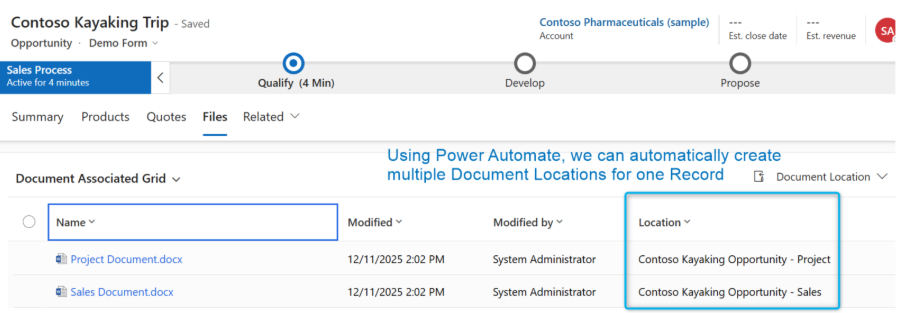
Now, the sales team can easily upload files to either the Project or Sales folders without having to go to different sites or even leave the Opportunity page at all.
The Account
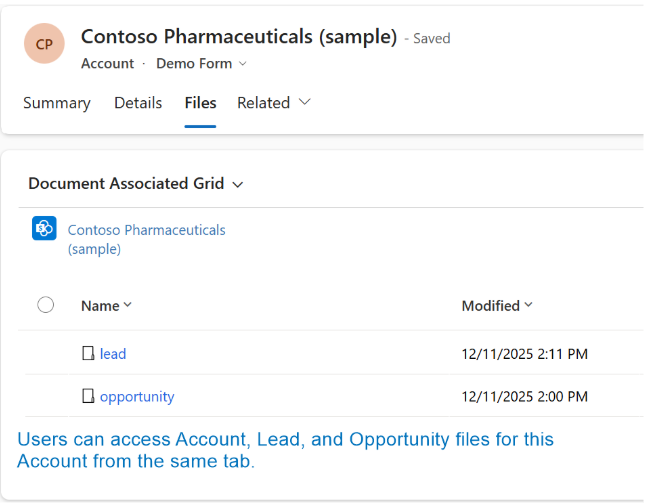
By adding an automation that creates an Account folder in both the Sales and Project sites when an Account is created, we finish setting up a system that will automatically fill in documents related to the Account as Leads and Opportunities related to that Account arise. The Lead and Opportunity already connect back to the Account, so users who access the Account can manage files specific to the Account, as well as files for related Leads and Opportunities, all in one place.
Conclusion
SharePoint’s integration with Dynamics 365 is a great way to manage files that users will create or access while working with specific records in Dynamics, while also making it easy for users without access to Dynamics to see and update those same files. Power Automate takes the integration a step further, giving more options to automatically create folders in SharePoint and relate them to records in Dynamics, in a way that works best with your sales process.
If you’d like to learn more about how you can integrate tools like SharePoint and Power Automate with Dynamics, reach out to the expert team at TopLine Results here or call us at 1-800-880-1960. We are happy to help!
You must be logged in to post a comment.