
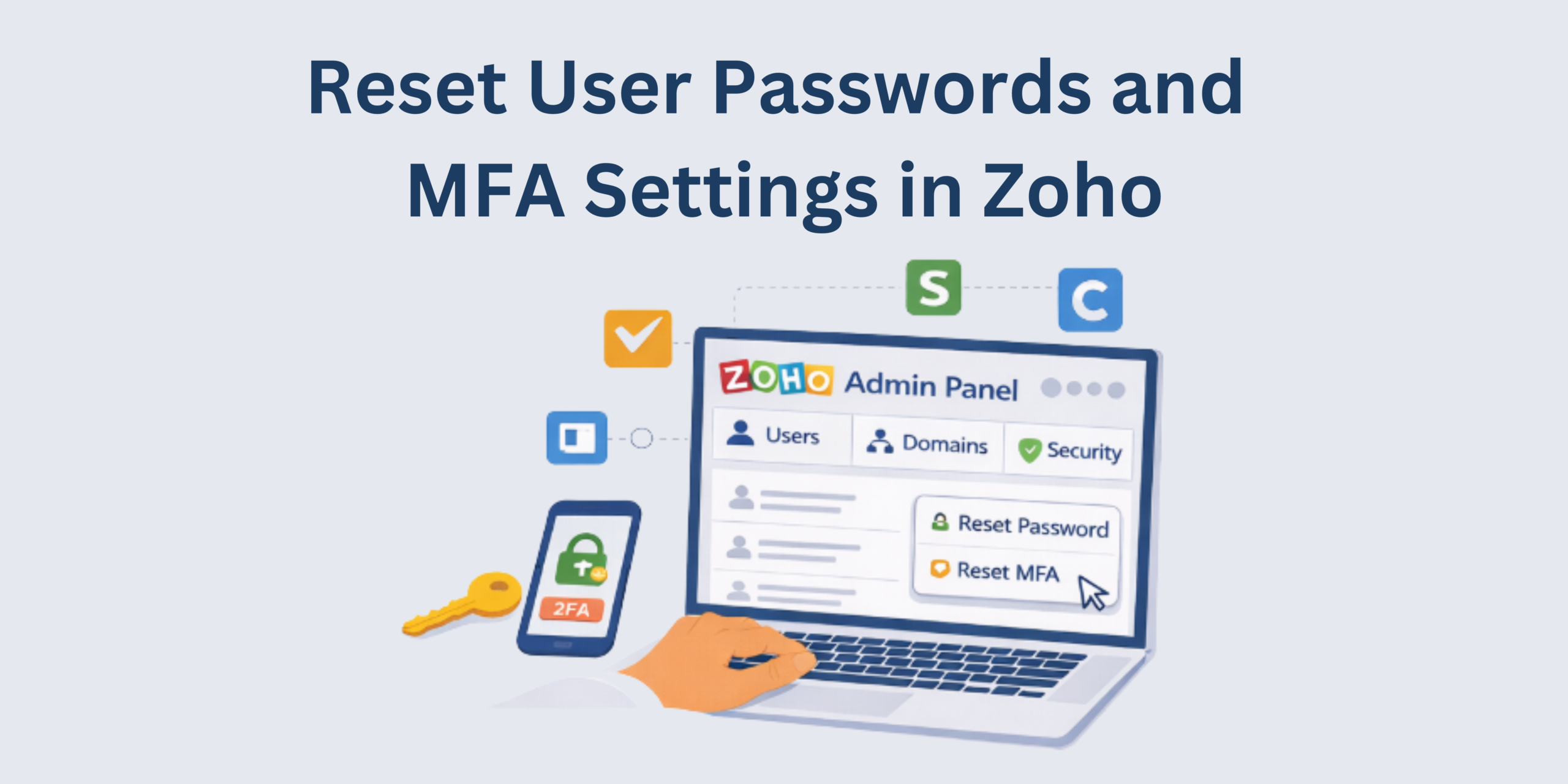
In any organization, it is inevitable that someone will require their password or multi-factor authentication (MFA) settings reset. Depending on who requires the reset, this can be anything from a light annoyance to a major disruption to your business. However, a bit of planning can help reduce the risk of issues and help you and your organization respond to these requests quickly.
The Zoho ecosystem provides some users and organizations with a way to manage those who are members of their organization. This includes the ability for them to reset their users’ passwords and MFA settings and provide several other tools to assist with user management.
Let’s review how a password reset can be triggered within your Zoho organization.
Domain Authentication
Zoho requires a user’s email domain to be verified within the Zoho organization for a user’s password or MFA to be reset. This ensures that only organizations that own that email domain are properly authorized to administer and alter a user’s login information.
However, as a result, there are a few extra steps to ensure you are properly verified to reset your users’ passwords.
Domain Configuration in Zoho One
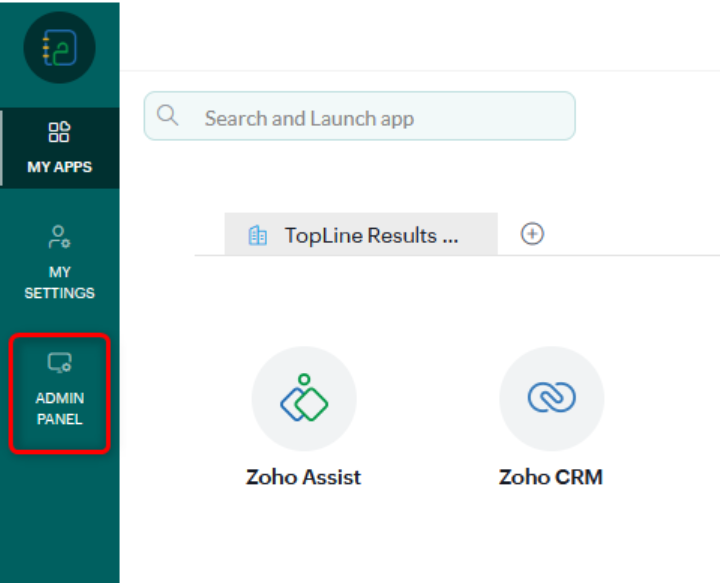
An organization admin user should navigate to the Zoho One Admin Center by clicking the “Admin Panel” link in the app selection menu.
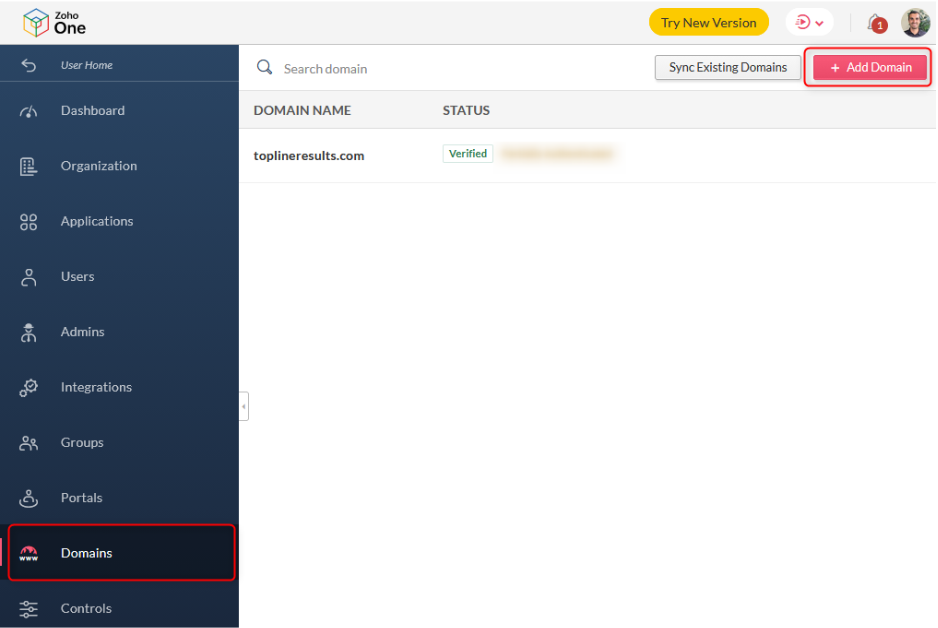
From there, click on the “Domain” tab, review any existing domains to ensure they are marked as “Verified”, and if not, click “Add Domain”.
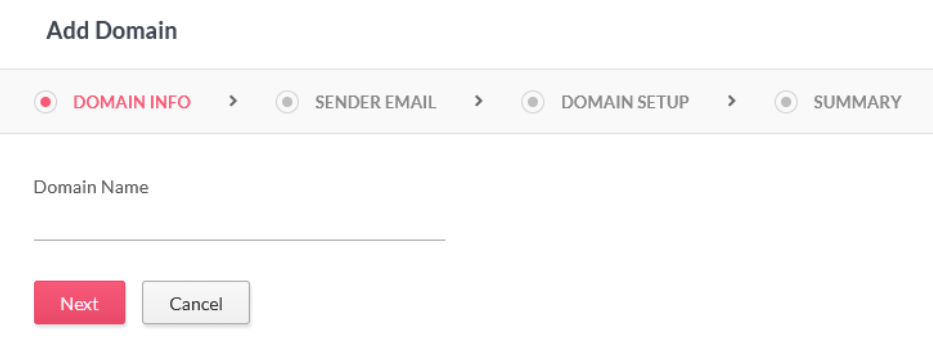
Enter the web domain you would like to add.
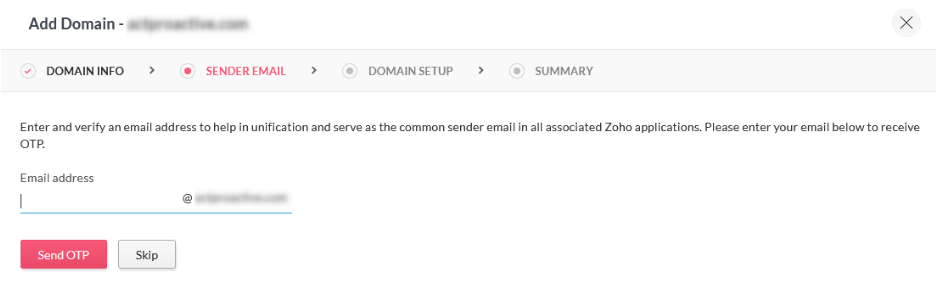
Identify the default ‘Sending Address’. This email will be used for any default communications by the authentication system within your organization.
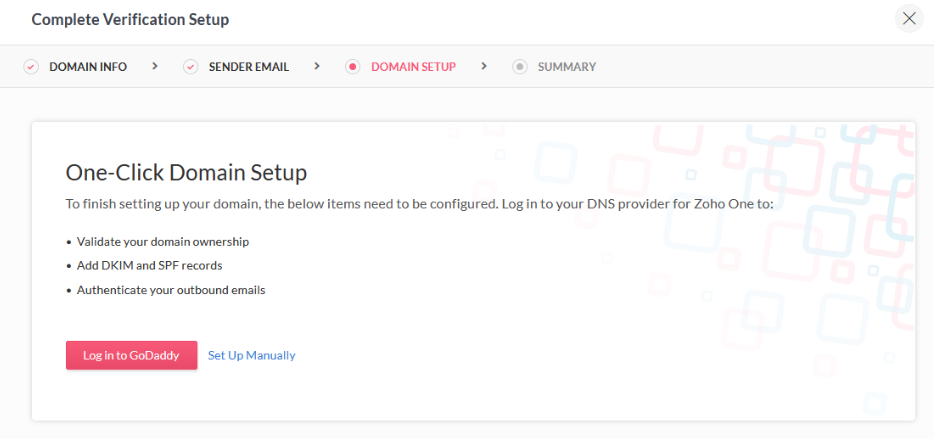
If you are using an applicable domain host, you may be able to follow the corresponding button to complete a one-click verification. Otherwise, click “Set Up Manually”.
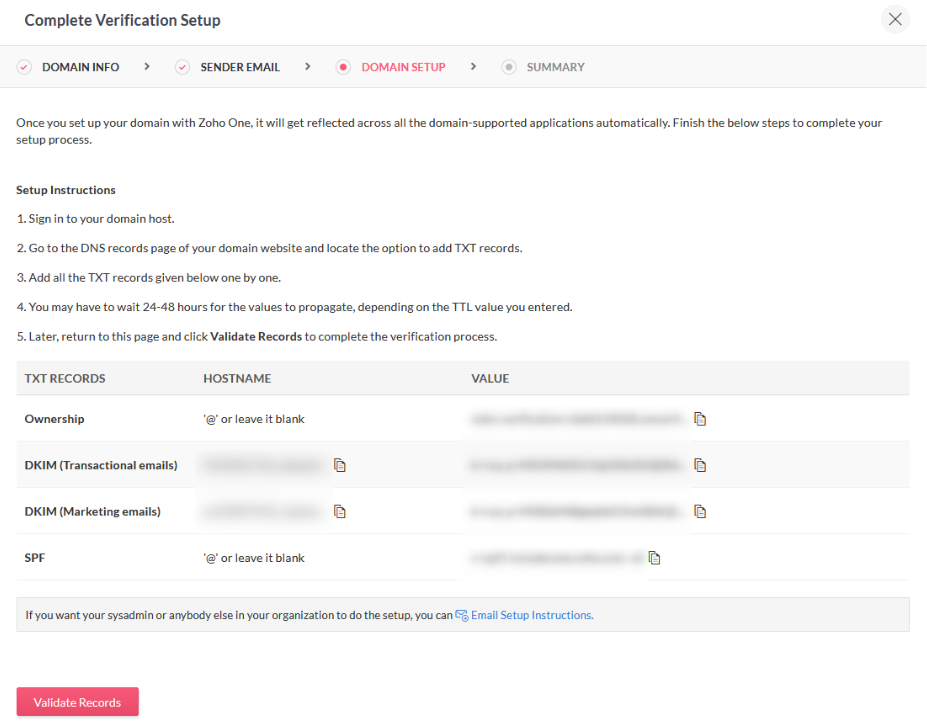
If you are setting up manually, the next screen will provide information that will allow your domain admin to update your DNS settings to verify your ownership of the domain.
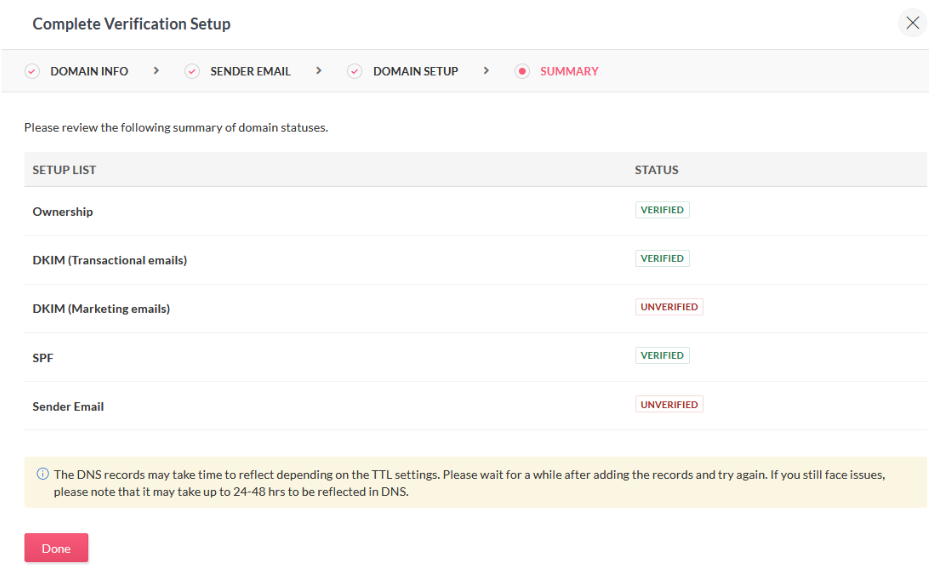
Finally, click “Validate Records” and confirm the DNS settings are acknowledged. Please note the ‘Ownership’ record must be verified in order to perform password and MFA reset actions.
For additional information regarding the domain verification process, Zoho provides documentation on the process: https://help.zoho.com/portal/en/kb/one/admin-guide/managing-domains/articles/zohoone-domains-verify-domain#Prerequisites
Domain Authentication through Zoho Directory (without Zoho One)
Navigate to https://directory.zoho.com/ and open the Admin Panel.
Click on the “Domains” tab, review the existing domains, and if needed, click the “Add Domain” button.
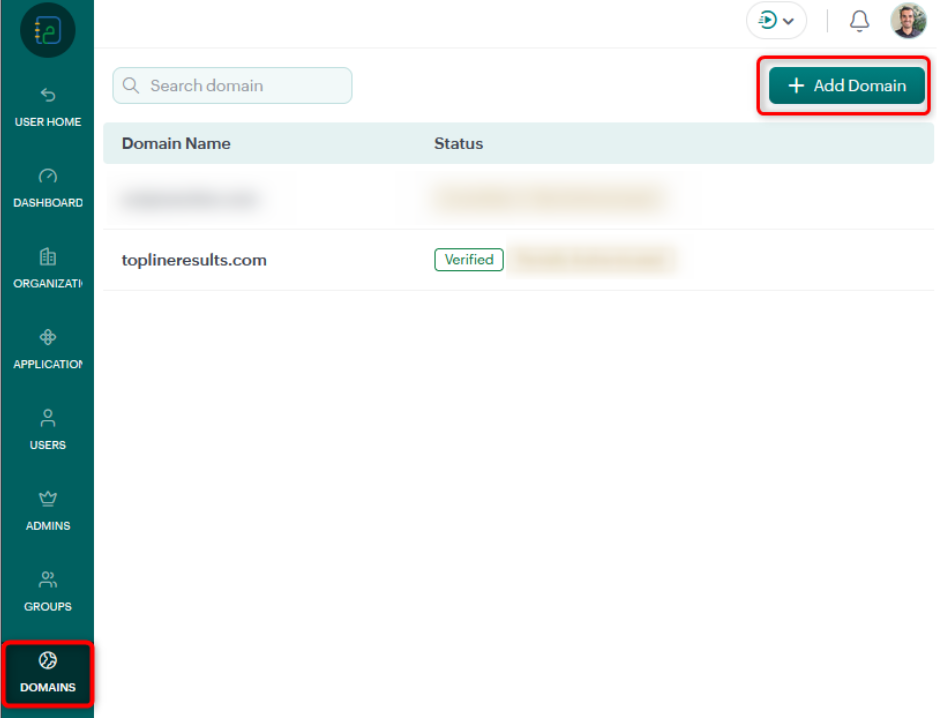
Follow the same steps under the “Domain Configuration in Zoho One” section above to configure the domain records and ensure the “Ownership” record is verified.
If you have any issues, Zoho has documentation that provides additional information on the process: https://help.zoho.com/portal/en/kb/directory/admin-guide/domains/articles/add-and-verify-domain#Prerequisites
Resetting a Password in Zoho One
Once the email domain is verified, admins will have the ability to reset the password and MFA settings for their users.
An organization admin user should navigate to the Zoho One Admin Center by clicking the “Admin Panel” link in the app selection menu.
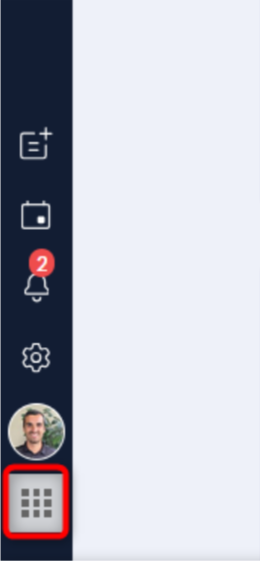
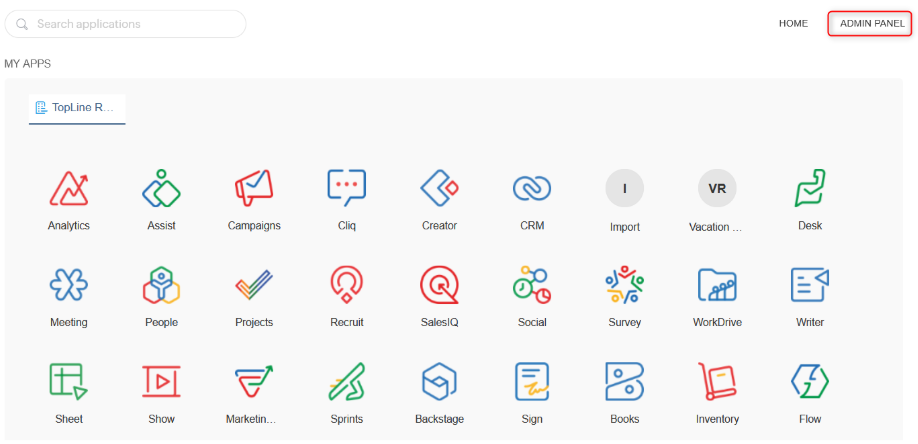
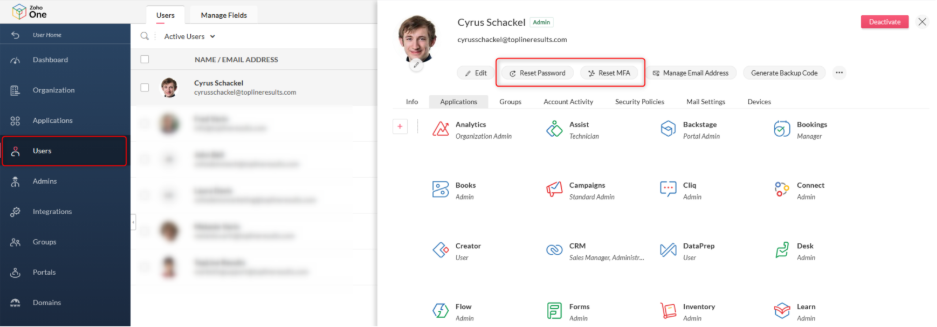
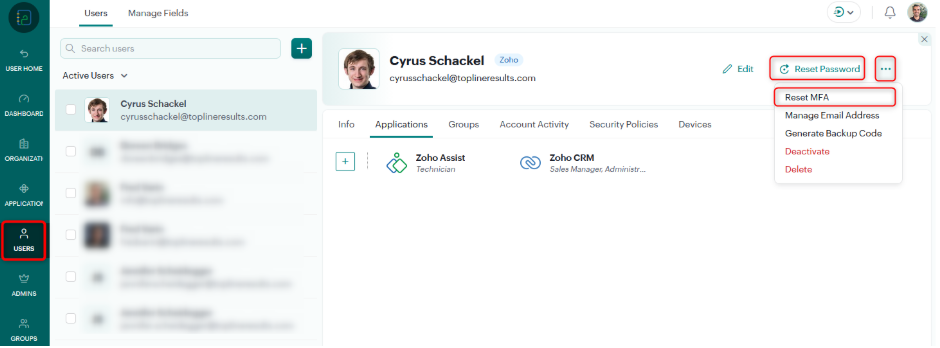
Click on the “Users” tab and select the user you want to reset the password/MFA for. Select the “Reset Password” or “Reset MFA” buttons in the action menu.
Resetting a Password via Zoho Directory
Navigate to https://directory.zoho.com/ and open the Admin Panel.
Open the selected user’s record and click the “Reset Password” or “Reset MFA” buttons in the action menu.
Resetting passwords and multi-factor authentication will always come up from time to time, but ensuring you have your domain authenticated and knowing how to help users who need a reset will help you and your team recover from these issues as quickly as possible.
If you need help resetting passwords or multi-factor authentication, or if you have any questions about the process, feel free to reach out to TopLine Results at 1-800-880-1060 or email info@toplineresults.com. We’re always here to help!
You must be logged in to post a comment.